


AI Photo Generator - ReCrea
4.64.00 Reviews
App Specs
- Version
- 4.31
- Updated On
- License
- Free
- Downloads
- 100,000+
- Developer
- S18
- Categories
- Photography
- Platform
- Android
Screenshots
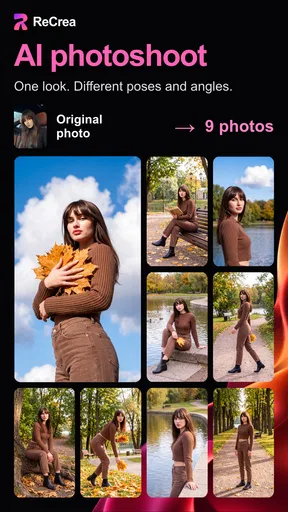
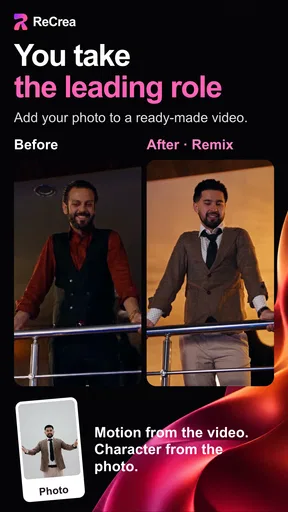
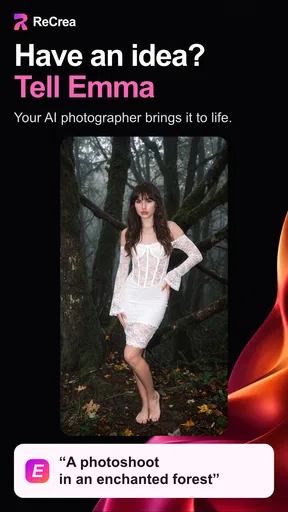
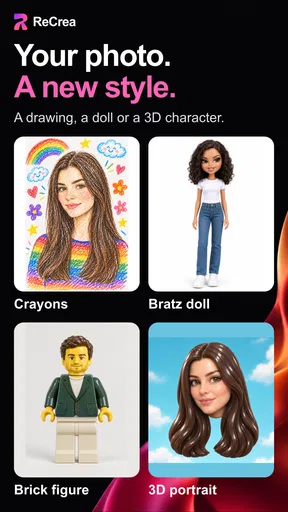
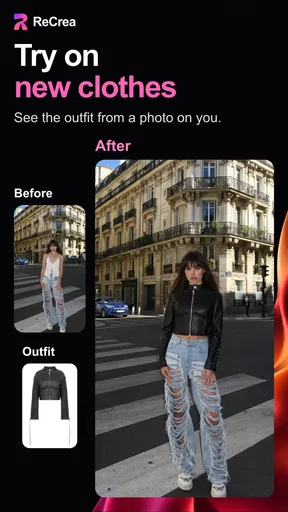
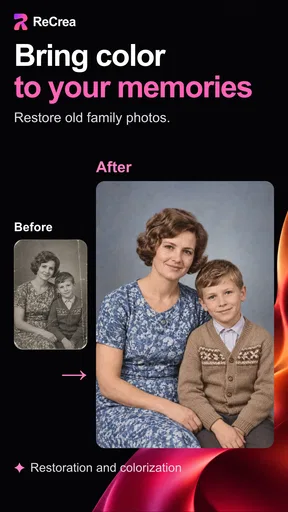
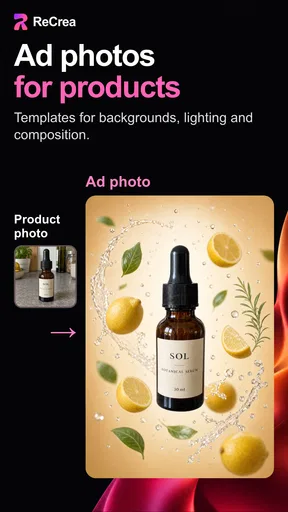
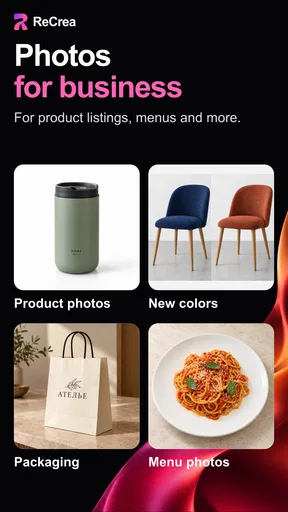
 Analysis by AppCompare
I approached AI Photo Generator - ReCrea as a photography app for people who want to turn ordinary selfies into more imaginative portraits without learning a full editing program. Its focus is clearly on AI-generated results: action-figure-style images, polished headshots, and playful selfie transformations. After spending time with it, I found the appeal is less about replacing a camera and more about giving one photo several new identities.
The first thing to understand is that this is not a conventional camera editor with a large collection of manual sliders. I would not choose it when I need careful control over exposure, skin texture, cropping, or color grading. I would choose it when I want to experiment with a portrait and see how an AI interpretation changes the mood. That distinction makes the experience easier to judge. ReCrea works best as a creative portrait playground, not as a complete photo-editing studio.
What to expect before creating your first image
ReCrea is a free photography app from S18, available for users aged Everyone. It supports devices running Android 8.0 or later, and the current version is 4.30. The app has reached over 100 thousand installs and holds a 4.6 average from around 1.7 thousand ratings, which suggests that its simple idea has found an audience among people who enjoy quick AI image experiments.
The store summary points to three connected uses: generating an action figure, making an AI headshot, and creating fun AI selfies. In practice, I would think of these as different reasons to start with the same basic material: a clear picture of yourself. The quality of the source image matters more than many beginners expect. A face that is visible, reasonably well lit, and not covered by sunglasses or a heavy shadow gives the app a much better starting point.
That does not mean you need a professional portrait. A casual phone photo can work well, especially when your face is turned toward the camera and the background is not competing for attention. I would avoid choosing a group photo for a first attempt. Even if the result looks interesting, it becomes harder to tell whether the app understood the intended subject correctly.
My favorite way to approach the app is to decide what I want before opening it. If I want a profile image, I look for a straightforward portrait. If I want something humorous to share with friends, I am more willing to use an expressive selfie. If I want an action-figure result, I choose a photo where my pose and clothing are easy to recognize. This small decision prevents the first session from becoming random trial and error.
There is also a practical expectation around cost. The app is free to install, while in-app purchases range from $2.99 to $174.99 per item. That broad range is important for a first-time user: I would explore the free experience carefully before paying for anything, and I would read each purchase screen rather than assuming every creative option has the same price. The free entry point makes testing easy, but the presence of purchases means the app deserves the same spending attention as any other creative service.
Worth Reading Before You Choose

Flipboard Shows What News Apps Must Do Beyond the Feed

Switching to Android Auto Means Rethinking Your Driving Routine

Google Calendar Makes a Crowded Week Easier to Manage

Ludo King Makes the Most of the Minutes Between Plans

Baby Panda World Brings Quick Play to Modern Phones, but Its Game Library Feels Busy

ESPN’s Live Game View Makes Following Close Games Easier
Choosing a source photo that gives the AI a fair chance
For a first meaningful result, I recommend using a recent selfie with one clearly visible face. Natural light near a window is usually a better starting point than a dark indoor shot. I would also keep the expression fairly relaxed on the first attempt. Dramatic poses can be fun later, but a neutral image makes it easier to see whether the transformation itself is working.
A useful trick is to keep two or three different source photos ready: one close-up, one from the chest upward, and one with a more expressive pose. This gives you a simple way to test which framing suits each creative direction. A headshot-style result may benefit from a closer crop, while an action-figure concept may have more visual room when the body and clothing are visible.
I would not spend time perfecting the original image with another editor before trying ReCrea. Heavy filters, artificial blur, or aggressive retouching can remove the facial details an AI generator needs. Start with the cleanest version you have, then judge the generated image before adding any extra edits elsewhere.
From installation to a first successful result
After installing the app, my advice is to move slowly through the opening screens instead of tapping through them automatically. Look for the route that matches your goal: a playful selfie, an action-figure concept, or a more polished headshot. The first success should be a small experiment, not an attempt to produce a perfect professional portrait for an important account.
When the app asks you to select or provide a photo, choose the strongest single-person image available. If the first screen presents several creative choices, begin with the one that most closely matches your intended use. A common beginner mistake is to select the most dramatic-looking option simply because it appears entertaining. That can make it difficult to understand whether an unexpected result came from the source photo or from the style itself.
Once the image is submitted, give the result a proper inspection rather than judging it only from the thumbnail. Look closely at the eyes, mouth, hairline, hands, clothing edges, and any small objects near the face. AI portraits can look convincing at a glance while still showing odd details when enlarged. I treat the first generation as a draft that tells me how to improve the next input.
If the result is recognizable but not quite right, I would change one variable at a time. Try a better-lit photo before switching to an entirely different style. If the pose looks awkward, use a more relaxed source image. If the face is altered too much, choose a closer and more front-facing portrait. Changing everything at once makes it impossible to learn what helped.
This one-variable approach is one of the most useful habits I found. It turns ReCrea from a slot-machine-style experiment into a lightweight creative workflow. You are still relying on automated generation, but you can make sensible decisions about the material you give it.
Using the three main creative directions wisely
The action-figure idea is strongest when treated as a character concept rather than a realistic portrait. I would use a photo with recognizable clothing or a confident pose, because those elements help the result feel personal. A plain, tightly cropped face may still produce something amusing, but it gives the transformation less visual information to work with.
For an AI headshot, restraint is more valuable. Choose a clean portrait and avoid a busy background. This is the option I would consider for a casual profile image, a personal introduction, or a creative social account. I would still review the final face carefully before using it in a professional context, because a stylized AI image can communicate a different impression from a natural photograph.
The fun selfie generator is where I would allow the most experimentation. Exaggerated expressions, unusual clothing, or a deliberately casual source photo can make the result more entertaining. The trade-off is consistency: a playful transformation may be memorable, but it is less suitable when you need your appearance to remain accurate.
In an everyday situation, imagine taking a quick selfie before meeting friends and wanting a humorous image for the group chat. I would choose a well-lit photo, try the playful direction first, and compare the result with an action-figure version. The useful part is not merely receiving one image; it is seeing which interpretation matches the mood of the conversation. For a birthday message or a lighthearted invitation, that kind of variation can be more personal than sending a standard filtered selfie.
Where first-time users may become confused
The biggest point of confusion is the difference between an AI-generated image and a normal edited photo. A regular editor lets you correct a specific problem yourself. ReCrea interprets the entire image, so it may change details you did not intend to change. If your goal is to remove one blemish while preserving everything else, a traditional retouching app is the better tool.
Another possible misunderstanding is expecting every result to preserve your identity with photographic accuracy. The headshot direction may feel more controlled than a playful transformation, but any AI interpretation can alter facial proportions, hair, clothing, or small features. I would frame the output as an artistic version of you. That mindset makes unusual results easier to evaluate and reduces disappointment.
It is also worth separating visual quality from personal usefulness. A dramatic image can be technically impressive and still be wrong for your purpose. Before sharing, ask whether the image represents the mood you want, whether your face remains recognizable enough, and whether the style fits the audience. This matters especially for profile pictures, where a fun image for friends may look out of place in a work-related setting.
Purchase prompts are another area where I would stay alert. Because the app includes optional purchases, I would not assume that tapping a prominent button is always part of the free workflow. Check the wording and price before confirming anything. The listed purchase range extends from a few dollars to well over a hundred dollars per item, so this is not a detail to skim past. If you are testing the app with a child or on a shared device, I would be especially careful around payment confirmation.
There is a further trade-off between speed and repeatability. AI generation is convenient because you do not need to master technical controls, but it may be harder to reproduce exactly the same look across several photos. If you are building a consistent set of portraits for a project, I would test several images before committing to the workflow. For one-off creative posts, that uncertainty is part of the fun. For a uniform visual identity, it may become frustrating.
Three practical techniques that improve the experience
- Match the crop to the goal: use a closer portrait for a headshot attempt and a wider image when clothing or pose should contribute to an action-figure concept.
- Keep a clean original: save the unfiltered source photo separately so you can compare the generated result and try a new direction without repeatedly editing the same file.
- Judge the image at full size: inspect facial features and edges before sharing, because a result that looks excellent in a small preview may reveal strange details when enlarged.
- Change one input at a time: improve lighting, framing, or expression separately so you learn which adjustment actually helped.
These techniques are simple, but they address the main weakness of automated image tools: when the output misses the mark, users often do not know what to try next. With ReCrea, a better source image is usually a more useful next step than repeatedly pressing the same option.
Who should use it and who should choose another tool
I think ReCrea is a good fit for casual creators who enjoy turning selfies into shareable concepts. It is also useful for someone who wants a quick visual idea without opening a complicated editor. The action-figure angle gives it a distinctive purpose, while the headshot and selfie directions make it more flexible than an app built around only one novelty effect.
It may suit social users who need an occasional profile refresh, friends making humorous images, or anyone curious about how an AI system interprets their appearance. I can also see value for early-stage creative brainstorming. For example, an action-figure result could help someone imagine a character design, costume direction, or themed portrait session before arranging a real shoot. I would treat that as inspiration rather than a finished design brief.
I would skip it if you need precise manual editing, dependable facial consistency, or professional retouching controls. A conventional photo editor is better when the task is correcting color, removing a distraction, or preparing an image to exact dimensions. A dedicated portrait camera app may also be preferable if your priority is taking a natural-looking photo rather than transforming one after the fact.
Compared with ordinary selfie filters, ReCrea feels more ambitious because it can reinterpret the whole portrait instead of placing a simple overlay on top. The trade-off is predictability. Standard filters are usually easier to control and repeat, while AI generation can produce a more surprising result but may also change parts of the image you wanted to keep. Compared with a full AI art platform, ReCrea appears more approachable for a first portrait experiment because its purpose is centered on personal photos rather than broad image creation.
Privacy-minded users should also make their own comfort decision before submitting personal portraits to any AI image service. I would avoid uploading someone else’s face without permission, and I would think carefully before using images of children or sensitive situations. This is not a reason to dismiss the app, but it is a sensible boundary whenever a tool works with recognizable faces.
What I would do after the first successful image
Once I had one result I liked, I would not immediately purchase anything. I would first repeat the process with a second source photo and a different creative direction. That tells me whether the success came from the selected style, the original image, or a fortunate combination of both. It also helps reveal whether the app fits my actual needs beyond a single entertaining result.
For a personal profile, I would compare the AI headshot with my natural photo and ask which one communicates me more honestly. For a joke or social post, I would choose the image with the clearest visual idea rather than the one with the most polished finish. For an action-figure concept, I would save several variations only if they show genuinely different character ideas; collecting near-duplicates quickly becomes clutter.
I would also keep the original and generated files organized with simple names based on their purpose. That sounds minor, but AI experiments can become difficult to sort once several versions accumulate. Separating “profile,” “fun,” and “character” images makes it easier to find the right result later without regenerating it.
ReCrea is most rewarding when you accept a little unpredictability and use it deliberately. It can give a familiar selfie a new role, but it cannot decide whether that role is appropriate for your audience. The creative judgment remains yours: select a suitable source, inspect the details, and share the result where its style makes sense.
Overall, I see this free photography app as an inviting first step into AI portrait generation. S18 has positioned it around accessible, recognizable ideas rather than demanding that users understand complicated image prompts. I like that it can move from a normal selfie to a playful character or a more polished portrait with very little preparation. I also think its limitations are clear enough to plan around: results may vary, purchases require attention, and serious editing work belongs elsewhere.
My recommendation is to try ReCrea if you want quick creative portraits and are comfortable treating each generation as an experiment. Start with one well-lit, single-person photo, choose the direction that matches your purpose, inspect the result closely, and make only one change when you try again. If your goal is exact control or a natural photograph with minimal alteration, use a traditional editor instead. For everyone else, it offers an easy and entertaining way to discover what an ordinary selfie can become.
Pros
- Creates imaginative images from simple text prompts.
- Useful for experimenting with different artistic styles.
- Fast generation makes it convenient for quick visual ideas.
- Can help create unique profile pictures and social content.
- Simple interface is approachable for first-time AI users.
Cons
- Results may vary significantly between similar prompts.
- Fine details such as hands or text can look inaccurate.
- Advanced features may require a subscription or credits.
- Generated images can consume considerable storage over time.
- An internet connection is generally needed for image generation.
FAQs for AI Photo Generator - ReCrea
What is AI Photo Generator - ReCrea, and what can I use it for?
AI Photo Generator - ReCrea is an image-creation and editing app designed to turn written prompts or reference ideas into AI-generated pictures. You can use it to create portraits, artistic scenes, social media graphics, wallpapers, character concepts, and other visual content. Results depend on the wording of your prompt, the selected style, and the app’s available generation options.
Is AI Photo Generator - ReCrea free to download and use?
The app may be available to download at no initial cost, but some features can be limited by credits, advertisements, subscriptions, or in-app purchases. Before generating many images, check the current pricing and trial conditions shown in the app store and inside ReCrea. Also review whether unused credits expire and whether a subscription renews automatically.
Does ReCrea require an internet connection to generate images?
AI image generation normally relies on cloud-based processing, so ReCrea is expected to require an active internet connection for most or all generation features. The quality and speed of results may vary depending on your connection and server availability. You may be able to view previously saved images offline, but creating new images generally cannot be guaranteed without online access.
Can I use the images created with AI Photo Generator - ReCrea commercially?
Commercial usage depends on ReCrea’s current terms of service, the plan you use, and sometimes the content of the image itself. Before using generated artwork for advertising, products, client work, or monetized social media, read the app’s licensing rules carefully. Avoid generating copyrighted characters, celebrity likenesses, logos, or other protected material without the necessary permission.
Is AI Photo Generator - ReCrea safe for personal photos and private prompts?
You should review ReCrea’s privacy policy before uploading personal photographs or entering sensitive information into prompts. Cloud-based AI tools may process images and text on remote servers, and retention policies can differ. Avoid submitting identity documents, confidential files, private conversations, or photos of other people without consent. Use the app’s deletion, account, and privacy controls whenever available.


